How to Draw a Radius on Google Maps
Updated February 16, 2026
Google Maps is the most popular mapping platform in the world, but it's missing one feature that millions of people search for: the ability to draw a radius circle on the map.
There is no built-in radius tool in Google Maps. You cannot click a point and draw a circle at a specific distance around it — not in the web version, not in the mobile app, and not in Google My Maps. Google has never added this feature despite years of user requests.
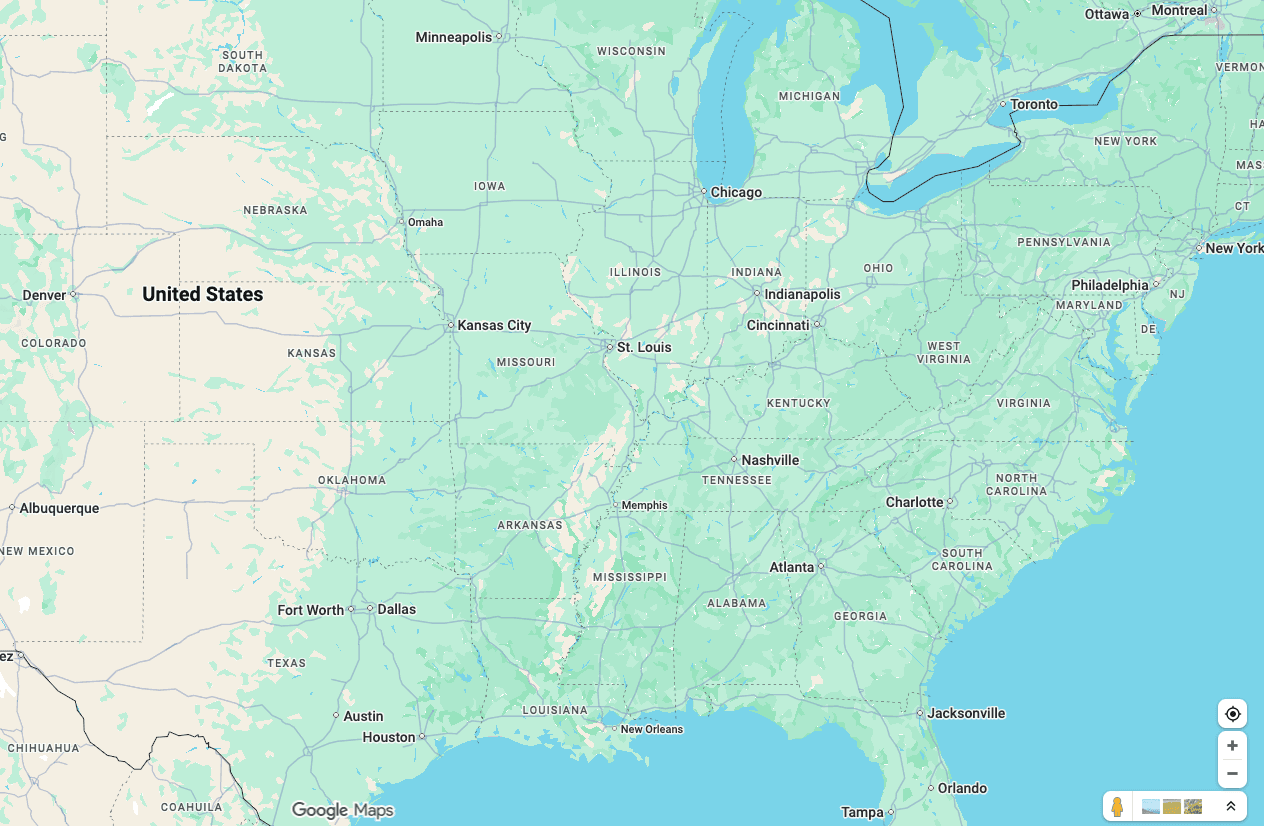
This guide covers three workarounds that people use to get a radius onto Google Maps, the limitations of each approach, and a faster alternative using our free radius map tool that works instantly without any setup.
Method 1: Use a Third-Party Radius Tool (Recommended)
The simplest way to get a radius on a map is to skip Google Maps entirely and use a tool built specifically for this purpose.
How to do it:
- Open Map With Radius (or any radius tool — we explain why we built ours below).
- Type your address, city, or zip code in the search bar.
- Enter your desired radius distance (e.g., 10 miles, 5 km).
- The circle appears instantly on the map.
Why this works best: The tool is purpose-built for radius drawing. You get address search, adjustable circles, multiple radii, and shareable links — all the features Google Maps doesn't offer. The map uses OpenStreetMap tiles, which show the same streets, landmarks, and geographic detail you'd see on Google Maps.
Limitation: The map tiles look different from Google Maps. If you specifically need the Google Maps visual style or satellite imagery, see Methods 2 and 3 below.
Method 2: KML File Import via Google My Maps
This method creates a circle in a KML file and imports it into Google My Maps. It's the only way to display a radius directly on a Google Map.
How to do it:
- Generate a KML circle. You need a KML file containing a circle polygon. You can create one using our tool (draw your radius → click Export KML) or use a KML circle generator.
- Open Google My Maps. Go to mymaps.google.com and sign in with your Google account. Click “Create a new map.”
- Import the KML file. Click “Import” in the left panel, then upload your KML file. The circle will appear on the Google Map.
- Adjust styling. Click the circle to change its fill color, border color, and opacity.
Limitations:
- Requires a Google account.
- You must generate the KML file externally first — Google My Maps cannot create circles from scratch.
- The circle is a polygon approximation (typically 360 points), not a true geometric circle. At small scales this is indistinguishable, but at very small radii the edges may appear slightly angular.
- You cannot easily resize the circle after import. To change the radius, you need to generate a new KML file and re-import it.
- Google My Maps has a limit of 10 layers and 2,000 features per layer.
Method 3: Google Maps JavaScript API (Developers Only)
If you're a developer building a web application, the Google Maps JavaScript API has a google.maps.Circle class that renders a radius circle programmatically.
Example code:
const map = new google.maps.Map(document.getElementById("map"), {
  center: { lat: 40.7128, lng: -74.0060 },
  zoom: 11,
});

new google.maps.Circle({
  map: map,
  center: { lat: 40.7128, lng: -74.0060 },
  radius: 16093, // radius in meters (10 miles ≈ 16,093 m)
  fillColor: "#4285F4",
  fillOpacity: 0.2,
  strokeColor: "#4285F4",
  strokeWeight: 2,
});
Limitations:
- Requires a Google Cloud account and API key.
- Requires JavaScript coding knowledge.
- Google Maps Platform charges $7 per 1,000 map loads after a $200 monthly free credit. For a personal project this may be free, but for a public website it adds up quickly.
- This is a development tool, not an end-user solution. Regular users searching “how to draw a radius on Google Maps” are looking for a ready-made tool, not a code snippet.
For reference, Google's official documentation on the Circle class: Google Maps JavaScript API — Circles
Why Google Maps Doesn't Have a Radius Tool
Google Maps is designed primarily for navigation — getting directions from A to B. Features like radius drawing, area measurement, and zone visualization fall outside its core use case.
Google My Maps (the customization layer) supports markers, lines, and polygons, but not circles. The Google Maps mobile app has a basic distance measurement tool (tap and hold to drop a pin, then select “Measure distance”), but this only measures point-to-point distance, not a radius in all directions.
Google has not publicly commented on why a radius feature has not been added. Third-party tools have filled this gap for over a decade — FreeMapTools has offered radius drawing since 2011, and MapDevelopers has been another popular option. Our tool, Map With Radius, is a more modern alternative built on open-source mapping technology.
Radius vs. Drive Time: Which Do You Need?
A common mistake is using a radius circle when you actually need a drive-time map. These serve different purposes:
| Radius Circle | Drive Time Map | |
|---|---|---|
| What it shows | Straight-line distance from a point | Actual travel distance by road |
| Shape | Perfect circle | Irregular polygon following roads |
| Best for | Quick distance estimates, coverage zones | Commute planning, delivery routing |
| Example | “Everything within 10 miles” | “Everything within a 20-minute drive” |
| Accounts for roads? | No | Yes |
| Accounts for traffic? | No | Depends on tool |
A 10-mile radius draws a perfect circle, but you can't actually reach every point inside that circle by road. Mountains, rivers, highways, and one-way streets all affect real-world accessibility. If you need to know what you can realistically reach, use our drive time map instead.
Frequently Asked Questions
Can you draw a radius on Google Maps without any tools?
How do I show a mile radius on Google Maps?
Is there a radius feature in Google Maps mobile app?
Can I draw a radius in Google Earth?
What's the best free alternative to Google Maps for radius drawing?
How do I draw a 5 km radius on Google Maps?
Related Tools
Ready to draw your radius?
Skip the workarounds. Draw a radius circle in seconds with our free tool.
Open Radius Map Tool